Warum Router VPN ein VPN nutzt, wohin der Tunnel führt, welcher Verkehr hindurchgeht und warum dabei keine Daten bei uns landen. Mit Einrichtung der FRITZ!Box Schritt für Schritt und Hilfe bei Problemen. Stand: Oktober 2026, Router VPN 1.1.1.
Ohne Store: Beim Öffnen fragt Android einmal, ob Installationen aus dieser Quelle (zum Beispiel Ihrem Browser) erlaubt sind – einmal zulassen. Updates kommen nicht automatisch; neue Versionen gibt es hier. Die App gibt es auf Deutsch und Englisch. Datenschutzerklärung von Router VPN.
Kurz gesagt
Router VPN verbindet Ihr Handy nur mit Ihrem eigenen Router zu Hause, zum Beispiel einer FRITZ!Box. Wir betreiben keinen VPN-Server; Ihr Datenverkehr läuft nie über uns.
Das VPN wird gebraucht, damit Softstringsphone und Softstringsphone Pro auch unterwegs über Ihre FRITZ!Box telefonieren können: mit Festnetznummer, Anrufliste, Telefonbuch und eingehenden Anrufen.
Sie bestimmen, was durch den Tunnel geht. Voreingestellt sind nur unsere Apps und nur Verbindungen ins Heimnetz – Ihr übriges Internet bleibt unberührt.
Der Tunnel ist mit WireGuard verschlüsselt. Die Zugangsdaten erzeugt Ihre FRITZ!Box selbst; Sie lesen sie per QR-Code, Datei oder Text in die App ein.
Keine Datenerhebung, keine Protokolle, kein Konto, keine Werbung, kein Tracking, keine Weitergabe.
Das VPN startet erst, nachdem die App erklärt hat, was es tut, und Sie im Android-Dialog zugestimmt haben. Es lässt sich jederzeit ausschalten.
Softstringsphone und Softstringsphone Pro melden sich als Telefon an Ihrer FRITZ!Box an. Zu Hause im WLAN geht das direkt. Unterwegs im Mobilfunk oder in einem fremden WLAN ist Ihre FRITZ!Box aus dem Internet dagegen absichtlich nicht erreichbar. Ohne VPN gehen dann keine Anrufe über Ihre Festnetznummer, eingehende Anrufe kommen nicht auf dem Handy an, und Anrufliste und Telefonbuch der Box fehlen.
Router VPN baut einen verschlüsselten Tunnel vom Handy zu Ihrer FRITZ!Box auf. Für die Box ist das Handy dann so, als wäre es zu Hause im Heimnetz. Die Box muss dafür keine Telefonie-Ports ins Internet öffnen – das ist sicherer, als die Telefonie direkt freizugeben. Dasselbe gilt für alles andere im Heimnetz, etwa einen Netzwerkspeicher, das Smart Home oder die Oberfläche der FRITZ!Box.
Warum eine eigene App?
Google Play erlaubt die VPN-Schnittstelle von Android (VpnService) nur Apps, deren Hauptaufgabe ein VPN ist. Deshalb steckt der Tunnel seit Softstringsphone 1.1.0 und Pro 2.3.0 in der eigenständigen, kostenlosen App Router VPN statt in den Telefon-Apps. Beide Telefon-Apps gehören zu den Apps, die Router VPN von sich aus durch den Tunnel schickt; sie telefonieren automatisch darüber und zeigen an, ob es läuft.
2. So funktioniert es
Sie legen in Ihrer FRITZ!Box einen WireGuard-Zugang für das Handy an. Die Box erzeugt dafür die Schlüssel und zeigt die Einstellungen als QR-Code und als Datei wg_config.conf.
Sie lesen diese Einstellungen in Router VPN ein. Sie werden verschlüsselt nur auf dem Handy gespeichert.
Beim Einschalten baut Router VPN über die VPN-Funktion von Android den Tunnel direkt zu der Adresse auf, die in den Einstellungen steht (Endpoint, meist Ihre MyFRITZ!-Adresse). Verwendet wird die offizielle WireGuard-Bibliothek. Welche Apps und welche Ziele den Tunnel nutzen, legen Sie in der App fest (Abschnitt 3).
Durch den Tunnel erreicht Softstringsphone die FRITZ!Box wie zu Hause, meldet sich für eingehende Anrufe an und telefoniert über die Box mit Ihrer Festnetznummer.
Der Tunnel endet an Ihrem Router. Sein Ziel legen allein die Einstellungen fest, die Ihr Router erzeugt hat. Wir sehen Ihren Datenverkehr nicht, leiten ihn nicht um und können ihn auch nicht sehen.
3. Welcher Verkehr durch den Tunnel geht
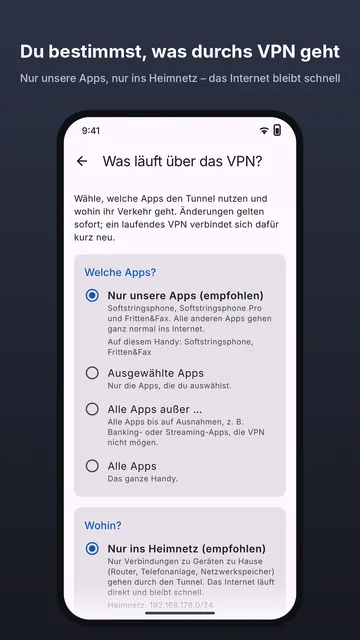
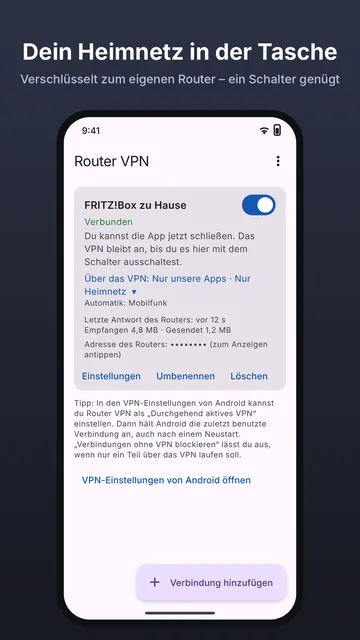
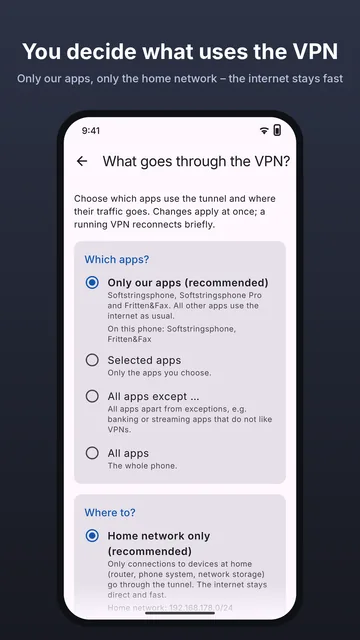
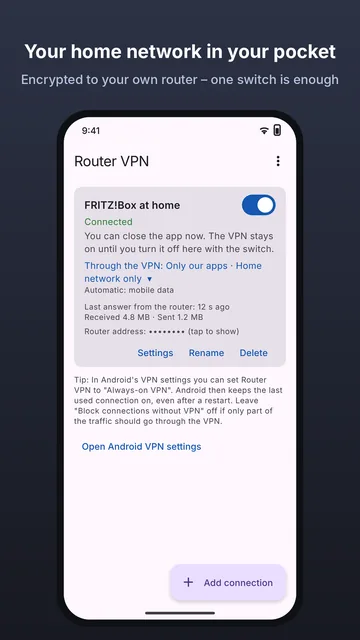
Das entscheiden Sie – in Router VPN an jeder Verbindung unter „Einstellungen“ → „Was läuft über das VPN?“. Die Karte der Verbindung zeigt jederzeit, was gerade gilt („Über das VPN: …“).
Voreinstellung für neue Verbindungen: „Nur unsere Apps“ · „Nur ins Heimnetz“. Dann nutzen nur Softstringsphone, Softstringsphone Pro und Fritten&Fax den Tunnel, und auch nur für Verbindungen zu Geräten zu Hause. Alle anderen Apps und Ihr übriges Internet laufen ganz normal und schnell am VPN vorbei.
Einstellungen einer Verbindung
Welche Apps?
Nur unsere Apps (empfohlen) – Softstringsphone, Softstringsphone Pro und Fritten&Fax.
Ausgewählte Apps – zum Beispiel zusätzlich der Browser, um die Oberfläche der FRITZ!Box oder einen Netzwerkspeicher zu öffnen.
Alle Apps außer … – das ganze Handy bis auf Ausnahmen, etwa Banking- oder Streaming-Apps, die kein VPN mögen.
Alle Apps – das ganze Handy.
Wohin?
Nur ins Heimnetz (empfohlen) – nur Verbindungen zu Router, Telefonanlage, Netzwerkspeicher und anderen Geräten zu Hause gehen durch den Tunnel. Das Internet läuft direkt.
Alles, auch das Internet – der gesamte Verkehr der gewählten Apps geht über Ihren Anschluss zu Hause. Sinnvoll in offenen, fremden WLANs. Webseiten sehen dann die Adresse Ihres Heimanschlusses, und die Upload-Geschwindigkeit zu Hause begrenzt das Surfen. Mit „Lokale Netze direkt“ bleiben Drucker, Fernseher und die Anmeldeseite im Hotel-WLAN trotzdem erreichbar.
Automatik je Netz
Auf Wunsch wählt Router VPN die Regel selbst, je nachdem, wo Sie sind: eine Regel „Im Mobilfunk“, eine „In fremden WLANs“ (vorgeschlagen: alles durch den Tunnel) und eine „Im eigenen WLAN zu Hause“ (vorgeschlagen: „Ruhen“ – dann geht zu Hause nichts über das VPN, unterwegs schaltet es sich von selbst wieder ein). Ob Sie zu Hause sind, erkennt die App an Ihrem eigenen Router, ohne Standortzugriff (siehe Abschnitt 4).
Verbindungen aus älteren Versionen
Bis Version 1.0.1 ging mit den Einstellungen der FRITZ!Box (AllowedIPs mit 0.0.0.0/0) der gesamte Verkehr des Handys durch den Tunnel. Schon eingerichtete Verbindungen verhalten sich nach dem Update genau wie bisher („Alle Apps · Alles“). Die App weist einmal darauf hin und bietet „Empfehlung übernehmen“ oder „Wie bisher lassen“ an.
Für Fortgeschrittene
Unter „Erweiterte Einstellungen zeigen“: zusätzliche Adressbereiche zu Hause (falls Ihr Heimnetz mehr als einen Bereich hat), Namensauflösung (DNS: wie vom Router vorgegeben, vom aktuellen Netz oder eigene Server), MTU und Lebenszeichen. „Auf Empfehlung zurücksetzen“ stellt alles zurück. Die WireGuard-Einstellungen Ihres Routers selbst bleiben dabei unverändert gespeichert.
Hinweis: Ist in den VPN-Einstellungen von Android „Verbindungen ohne VPN blockieren“ an, lässt Android nur noch Verkehr durch das VPN zu. Router VPN schickt dann alles von allen Apps durch den Tunnel – sonst hätten andere Apps kein Internet – und ruht zu Hause nicht. Die App zeigt das an der Verbindung an.
4. Datenschutz und Berechtigungen
Keine Datenerhebung: Router VPN hat kein Konto, keinen eigenen Server, keine Werbe- oder Analyse-Bibliotheken und sendet nichts an uns oder an Dritte.
Keine Protokolle: Der Datenverkehr im Tunnel wird von der App weder ausgewertet noch verändert, protokolliert oder umgeleitet.
Erkennung von zu Hause (nur bei „Automatik je Netz“): Die App fragt Ihren eigenen Router nach seiner festen Gerätekennung – nur durch den Tunnel oder im eigenen WLAN – und speichert sie nur auf Ihrem Handy. Kein Standortzugriff, WLAN-Namen werden nicht gelesen, nichts geht anderswohin.
Ihr Schlüssel bleibt auf dem Handy: Die eingelesenen Einstellungen enthalten einen privaten Schlüssel. Sie werden mit AES-256-GCM verschlüsselt (Schlüssel im Android-Keystore), nur auf diesem Handy gespeichert, nicht in Android-Sicherungen übernommen und nie protokolliert. „Löschen“ an der Verbindung oder das Deinstallieren entfernt sie.
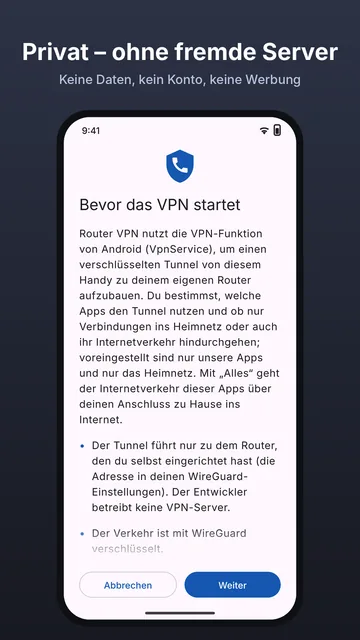
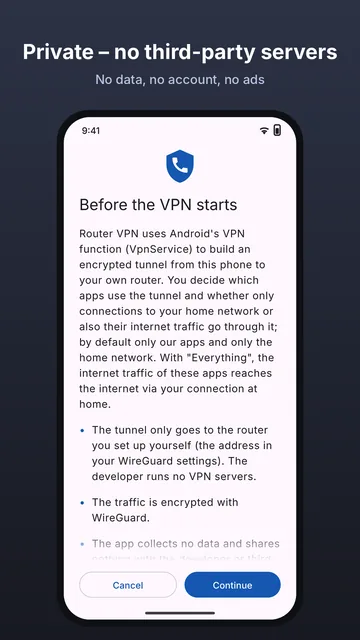
Ihre Zustimmung: Vor dem ersten Einschalten erklärt die App auf der Seite „Bevor das VPN startet“, was das VPN tut und dass Sie bestimmen, was hindurchgeht. Erst nach „Weiter“ fragt Android in seinem eigenen Dialog, ob Router VPN eine VPN-Verbindung einrichten darf. Ohne Ihre Zustimmung startet kein VPN. Solange es läuft, zeigt Android ein Schlüssel-Symbol in der Statusleiste.
Jederzeit ausschaltbar: mit dem Schalter in der App, über die Schnelleinstellung „Router VPN“ oder in Android unter Einstellungen → Netzwerk & Internet → VPN.
Berechtigungen:VPN (Android fragt einmal) für den Tunnel; Internet für die Verbindung zu Ihrem Router; Netzwerkstatus, um Mobilfunk und WLAN zu unterscheiden (Automatik je Netz); Liste der Apps mit Symbol im App-Menü, damit Sie auswählen können, welche Apps das VPN nutzen – die Liste bleibt auf dem Handy; Kamera nur, wenn Sie „QR-Code scannen“ antippen – die Erkennung läuft auf dem Handy, Bilder werden weder gespeichert noch gesendet; Beim Start ausführen, damit ein eingeschaltetes VPN nach einem Neustart wieder an ist.
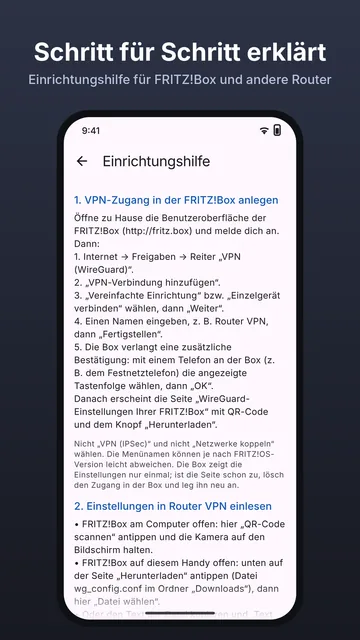
Diese Schritte entsprechen der Einrichtungshilfe in der App. Die Menünamen können je nach FRITZ!OS-Version leicht abweichen.
A. VPN-Zugang in der FRITZ!Box anlegen
Zu Hause im Browser http://fritz.box öffnen und anmelden.
Internet → Freigaben → Reiter „VPN (WireGuard)“.
„VPN-Verbindung hinzufügen“.
„Vereinfachte Einrichtung“ bzw. „Einzelgerät verbinden“ wählen, dann „Weiter“.
Einen Namen eingeben, zum Beispiel Router VPN, dann „Fertigstellen“.
Die Box verlangt eine zusätzliche Bestätigung: mit einem Telefon an der Box (zum Beispiel dem Festnetztelefon) die angezeigte Tastenfolge wählen, dann „OK“.
Es erscheint die Seite „WireGuard-Einstellungen Ihrer FRITZ!Box“ mit QR-Code und dem Knopf „Herunterladen“. Diese Seite offen lassen.
Achtung: Nicht „VPN (IPSec)“ und nicht „Netzwerke koppeln“ wählen. Die Box zeigt die Einstellungen nur einmal; ist die Seite schon zu, den Zugang in der Box löschen und neu anlegen. QR-Code und Datei sind ein Schlüssel zu Ihrem Heimnetz: nicht weitergeben, nicht fotografieren und die Datei nach dem Einlesen löschen.
B. Einstellungen in Router VPN einlesen
Router VPN installieren – über die Startseite (bald auch bei Google Play und im Galaxy Store). In Softstringsphone führt „VPN-App installieren“ direkt dorthin.
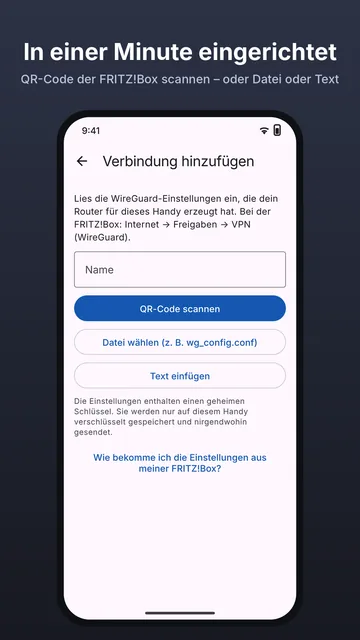
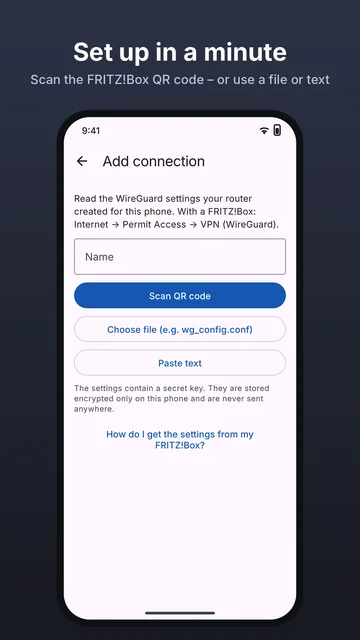
In Router VPN „Verbindung hinzufügen“ antippen und einen Weg wählen:
FRITZ!Box am Computer offen: „QR-Code scannen“ und die Kamera auf den Bildschirm halten.
FRITZ!Box auf diesem Handy offen: dort „Herunterladen“ antippen (Datei wg_config.conf in „Downloads“), dann in der App „Datei wählen“.
Oder den Text der Datei kopieren und „Text einfügen“ nehmen.
Optional einen Namen vergeben, zum Beispiel „FRITZ!Box zu Hause“.
C. Einschalten und testen
Den Schalter an der Verbindung einschalten. Die App zeigt einmal „Bevor das VPN startet“; mit „Weiter“ bestätigen.
Android fragt nach der „Verbindungsanfrage“: mit „OK“ erlauben.
Am besten mit ausgeschaltetem WLAN testen. Nach ein paar Sekunden steht „Verbunden“ da, dazu „Letzte Antwort des Routers“.
Softstringsphone zeigt jetzt „VPN aktiv“ und meldet sich für eingehende Anrufe an. Die App Router VPN dürfen Sie schließen; das VPN bleibt an, bis Sie es ausschalten.
Optional: unter „Einstellungen“ an der Verbindung festlegen, was über das VPN läuft, und die „Automatik je Netz“ einschalten (Abschnitt 3). Bei der Automatik einmal zu Hause im WLAN „Ich bin zu Hause: Router jetzt merken“ antippen – oder die App merkt sich den Router beim nächsten Verbinden von selbst.
Verbindung hinzufügenErklärung vor dem ersten StartVerbundenEinrichtungshilfe in der App
Tipps
Zu Hause im WLAN brauchen Sie das VPN nicht. Mit der „Automatik je Netz“ ruht es dort von selbst.
In den VPN-Einstellungen von Android lässt sich Router VPN als „Durchgehend aktives VPN“ einstellen. Dann hält Android die zuletzt benutzte Verbindung an, auch nach einem Neustart. „Verbindungen ohne VPN blockieren“ lassen Sie aus, wenn nur ein Teil über das VPN laufen soll.
Es ist immer nur eine Verbindung an. Schalten Sie eine andere ein, endet die laufende.
7. Häufige Probleme
„Der Router antwortet nicht“
Mit mobilen Daten testen, nicht im eigenen WLAN.
Prüfen, ob der Zugang in der FRITZ!Box noch besteht (Internet → Freigaben → VPN (WireGuard)). Wurde er neu angelegt, die neuen Einstellungen einlesen – die alten Schlüssel gelten dann nicht mehr.
Manche öffentlichen WLANs (Hotel, Firma, Zug) sperren WireGuard (UDP). Dann über Mobilfunk versuchen.
Bekommt der Router eine neue Internetadresse, etwa nach der Zwangstrennung, merkt die App die fehlenden Antworten und verbindet sich selbst neu.
„Die Adresse des Routers wurde nicht gefunden“
Ist das Handy online? Die App versucht es von selbst gleich noch einmal.
In der FRITZ!Box unter Internet → MyFRITZ!-Konto prüfen, ob die Box dort angemeldet ist. Nach einem Neustart der Box kann es einige Minuten dauern, bis die MyFRITZ!-Adresse wieder stimmt.
„Das sind keine WireGuard-Einstellungen“
Eingelesen werden muss der QR-Code bzw. die Datei aus Internet → Freigaben → VPN (WireGuard). Die MyFRITZ!-Adresse allein oder ein IPSec-Zugang reichen nicht. Fehlt der private Schlüssel oder die Adresse (Endpoint), meldet die App das ausdrücklich.
„Android hat das VPN nicht erlaubt“ / ein anderes VPN ist aktiv
Android erlaubt immer nur ein aktives VPN. Schalten Sie Router VPN nochmal ein und tippen Sie bei der Rückfrage von Android auf „OK“. Ist eine andere App (Firmen-VPN, Werbeblocker mit VPN, die App „WireGuard“) als „Durchgehend aktives VPN“ eingestellt, das vorher unter Einstellungen → Netzwerk & Internet → VPN ausschalten.
Anschluss mit DS-Lite (keine eigene IPv4-Adresse)
Viele Kabel- und manche Glasfaseranschlüsse haben keine eigene öffentliche IPv4-Adresse. Die Box ist dann nur über IPv6 erreichbar. Das VPN klappt, wenn auch Ihr Mobilnetz IPv6 kann – in deutschen Mobilfunknetzen meist der Fall, in fremden WLANs oft nicht. Abhilfe: beim Anbieter eine öffentliche IPv4-Adresse erfragen.
Gleicher Adressbereich wie das fremde Netz
Viele FRITZ!Boxen nutzen 192.168.178.x. Sind Sie unterwegs in einem WLAN mit demselben Bereich (zum Beispiel bei Bekannten mit FRITZ!Box), ist Ihr Heimnetz nicht erreichbar. Abhilfe: mobile Daten nutzen oder den Adressbereich der eigenen Box ändern (Heimnetz → Netzwerk → Netzwerkeinstellungen → IPv4-Einstellungen) und den VPN-Zugang danach neu anlegen.
Surfen ist langsam, solange das VPN an ist
Dann läuft der gesamte Verkehr über Ihren Heimanschluss, und dessen Upload bremst – typisch für Verbindungen aus Version 1.0.x. Abhilfe: unter „Was läuft über das VPN?“ „Nur ins Heimnetz“ wählen oder „Auf Empfehlung zurücksetzen“ (Abschnitt 3).
http://fritz.box öffnet sich im Browser nicht
Mit der Voreinstellung „Nur unsere Apps“ nutzt der Browser das VPN nicht. Den Browser unter „Ausgewählte Apps“ hinzunehmen oder „Alle Apps“ wählen. Steht die Namensauflösung auf „Vom aktuellen Netz“, ist die Box nur über ihre Adresse erreichbar (z. B. http://192.168.178.1).
Eine Banking- oder Streaming-App funktioniert mit VPN nicht
Manche Apps lehnen VPN-Verbindungen ab. Diese App unter „Alle Apps außer …“ als Ausnahme wählen – oder bei „Nur unsere Apps“ bleiben, dann ist sie ohnehin nicht betroffen.
Die Automatik erkennt mein WLAN zu Hause nicht
Zu Hause erkennt die App an der Gerätekennung Ihrer FRITZ!Box. Dafür muss unter Heimnetz → Netzwerk → Netzwerkeinstellungen „Zugriff für Anwendungen zulassen“ an sein (meist schon an). Bei Routern ohne diese Kennung gilt zu Hause die Regel für fremde WLANs. Ist in Android „Verbindungen ohne VPN blockieren“ an, ruht das VPN zu Hause grundsätzlich nicht.
Eingehende Anrufe kommen unterwegs nicht an
Läuft das VPN? Softstringsphone zeigt „VPN aktiv“.
In Softstringsphone die Akku-Optimierung ausschalten (Knopf in den Einstellungen der App, oder Einstellungen → Apps → Softstringsphone → Akku → Nicht eingeschränkt). Bei Samsung, Xiaomi, Huawei und anderen gibt es zusätzliche Energiesparlisten; Hilfe je Hersteller: dontkillmyapp.com.
Welche Telefone klingeln, legt die FRITZ!Box fest (Telefonie → Telefoniegeräte).
8. Alternativen
Router VPN ist ein Angebot, keine Pflicht. Die VPNs dieser Apps gelten in der Regel für das ganze Handy, deshalb funktionieren Softstringsphone und Pro auch mit diesen Wegen:
MyFRITZ!App des Box-Herstellers: kann ebenfalls eine VPN-Verbindung zur FRITZ!Box aufbauen.
Die offizielle App „WireGuard“: dieselben Einstellungen der FRITZ!Box dort einlesen und einschalten.
Ohne VPN: zu Hause im WLAN telefonieren beide Apps direkt über die FRITZ!Box.
Es kann immer nur ein VPN gleichzeitig an sein. Nutzen Sie eine dieser Apps, lassen Sie Router VPN aus.
9. Demo-Video (Textfassung)
Das kurze Demo-Video zeigt den ganzen Ablauf ohne Ton. Hier steht, was in welchem Moment zu sehen ist. Im Video läuft – wie bis Version 1.0.1 üblich – der gesamte Verkehr durch den Tunnel, deshalb öffnet auch der Browser die FRITZ!Box; mit der heutigen Voreinstellung „Nur unsere Apps“ müsste der Browser dafür ausgewählt sein.
Zeit
Was zu sehen ist
0:00
WLAN aus, mobile Daten an. Router VPN zeigt „Noch keine Verbindung“: ein WireGuard-VPN zum eigenen Router, ohne Server des Entwicklers.
0:10
„Verbindung hinzufügen“ → „Datei wählen“ → wg_config.conf: Eingelesen werden die Einstellungen, die der eigene Router erzeugt hat.
0:25
Schalter an → Erklärung „Bevor das VPN startet“ → „Weiter“ → Android „Verbindungsanfrage“ → „OK“.
0:40
„Verbunden“, letzte Antwort des Routers und Datenmenge: Der verschlüsselte Tunnel zum eigenen Router steht.
0:50
Im Browser öffnet http://fritz.box die Oberfläche der eigenen Box: Das Heimnetz ist über Mobilfunk erreichbar.
1:05
Zurück in der App wird das VPN ausgeschaltet – jederzeit möglich.
Hinweis zu Marken
Router VPN und Softstringsphone sind unabhängige Apps und stehen in keiner Verbindung zur FRITZ! GmbH (vormals AVM). FRITZ!Box, FRITZ!OS und MyFRITZ! sind Marken der FRITZ! GmbH. WireGuard ist eine eingetragene Marke von Jason A. Donenfeld.
Router VPN
The VPN to your own router – explained
Why Router VPN uses a VPN, where the tunnel goes, which traffic uses it and why none of your data reaches us. With step-by-step FRITZ!Box setup and troubleshooting. Last updated: October 2026, Router VPN 1.1.1.
No store needed: when you open it, Android asks once whether installs from this source (for example your browser) are allowed – allow it once. Updates are not automatic; new versions are available here. The app is available in English and German. Router VPN privacy policy.
In short
Router VPN connects your phone only to your own router at home, for example a FRITZ!Box. We run no VPN servers; your traffic never passes through us.
The VPN is needed so that Softstringsphone and Softstringsphone Pro work away from home through your FRITZ!Box: with your landline number, call list, phone book and incoming calls.
You decide what goes through the tunnel. By default only our apps and only connections to your home network – the rest of your internet is untouched.
The tunnel is encrypted with WireGuard. Your FRITZ!Box creates the credentials itself; you import them into the app by QR code, file or text.
No data collection, no logs, no account, no ads, no tracking, no sharing.
The VPN only starts after the app has explained what it does and you have accepted Android's consent dialog. It can be turned off at any time.
Softstringsphone and Softstringsphone Pro register with your FRITZ!Box as a telephone. On your home Wi-Fi this works directly. On mobile data or someone else's Wi-Fi, your FRITZ!Box is deliberately not reachable from the internet. Without a VPN you cannot call with your landline number, incoming calls do not reach the phone, and the router's call list and phone book are missing.
Router VPN builds an encrypted tunnel from the phone to your FRITZ!Box. The router then treats the phone as if it were on the home network. The router does not need to open any telephony ports to the internet – which is safer than exposing telephony directly. The same applies to everything else on your home network, such as network storage, the smart home or the FRITZ!Box user interface.
Why a separate app?
Google Play only allows Android's VPN interface (VpnService) in apps whose main purpose is a VPN. That is why, since Softstringsphone 1.1.0 and Pro 2.3.0, the tunnel lives in the standalone, free app Router VPN instead of the phone apps. Both phone apps are among the apps Router VPN sends through the tunnel by default; they automatically call through it and show whether it is running.
2. How it works
You create a WireGuard access for the phone in your FRITZ!Box. The router generates the keys and shows the settings as a QR code and as the file wg_config.conf.
You import these settings into Router VPN. They are stored encrypted, only on the phone.
When you switch it on, Router VPN uses Android's VPN function to open the tunnel directly to the address in the settings (Endpoint, usually your MyFRITZ! address). It uses the official WireGuard library. Which apps and destinations use the tunnel is set in the app (section 3).
Through the tunnel, Softstringsphone reaches the FRITZ!Box just like at home, registers for incoming calls and calls through the router with your landline number.
The tunnel ends at your router. Its destination is defined only by the settings your router generated. We do not see your traffic, do not redirect it and have no way to see it.
3. Which traffic goes through the tunnel
You decide – in Router VPN, on each connection under "Settings" → "What goes through the VPN?". The connection's card always shows what currently applies ("Through the VPN: …").
Default for new connections: "Only our apps" · "Home network only". Only Softstringsphone, Softstringsphone Pro and Fritten&Fax use the tunnel, and only for connections to devices at home. All other apps and the rest of your internet bypass the VPN as usual and stay fast.
Settings of a connection
Which apps?
Only our apps (recommended) – Softstringsphone, Softstringsphone Pro and Fritten&Fax.
Selected apps – for example also the browser, to open the FRITZ!Box interface or network storage.
All apps except … – the whole phone except exclusions, such as banking or streaming apps that don't like VPNs.
All apps – the whole phone.
Where to?
Home network only (recommended) – only connections to the router, phone system, network storage and other devices at home go through the tunnel. The internet stays direct.
Everything, including the internet – all traffic of the chosen apps goes out via your connection at home. Useful on open, unknown Wi-Fi. Websites then see your home IP address, and your home upload speed limits browsing. With "Local networks direct", printers, TVs and the hotel Wi-Fi login page stay reachable.
Automatic by network
Optionally, Router VPN picks the rule by itself depending on where you are: one rule "On mobile data", one "In other Wi-Fi networks" (suggested: everything through the tunnel) and one "In your Wi-Fi at home" (suggested: "Rest" – nothing goes through the VPN at home, and it switches back on by itself when you leave). The app recognises home by your own router, without location access (see section 4).
Connections from older versions
Up to version 1.0.1, the FRITZ!Box settings (AllowedIPs including 0.0.0.0/0) sent all of the phone's traffic through the tunnel. Connections set up before the update behave exactly as before ("All apps · Everything"). The app points this out once and offers "Use recommendation" or "Keep as before".
Advanced
Under "Show advanced settings": additional address ranges at home (if your home network has more than one range), name resolution (DNS: as set by the router, from the current network, or your own servers), MTU and keepalive. "Reset to recommendation" restores everything. Your router's WireGuard settings themselves stay stored unchanged.
Note: if "Block connections without VPN" is on in Android's VPN settings, Android only allows traffic through the VPN. Router VPN then sends everything from all apps through the tunnel – otherwise other apps would have no internet – and does not rest at home. The app shows this on the connection.
4. Privacy and permissions
No data collection: Router VPN has no account, no server of its own, no advertising or analytics libraries, and sends nothing to us or to third parties.
No logs: the app does not inspect, modify, log or redirect the traffic in the tunnel.
Recognising home (only with "Automatic by network"): the app asks your own router for its fixed device ID – only through the tunnel or in your own Wi-Fi – and stores it only on your phone. No location access, Wi-Fi names are not read, nothing is sent anywhere else.
Your key stays on the phone: the imported settings contain a private key. They are encrypted with AES-256-GCM (key in the Android Keystore), stored only on this phone, excluded from Android backups and never logged. "Delete" on the connection or uninstalling the app removes them.
Your consent: before the first start, the app explains on the screen "Before the VPN starts" what the VPN does and that you decide what goes through it. Only after "Continue" does Android ask in its own dialog whether Router VPN may set up a VPN connection. No VPN starts without your consent. While it runs, Android shows a key icon in the status bar.
Off at any time: with the switch in the app, the quick settings tile "Router VPN" or in Android under Settings → Network & internet → VPN.
Permissions:VPN (Android asks once) for the tunnel; Internet for the connection to your router; Network state to tell mobile data from Wi-Fi (automatic by network); List of apps with an icon in the app drawer so you can choose which apps use the VPN – the list stays on the phone; Camera only when you tap "Scan QR code" – recognition runs on the phone, images are neither stored nor sent; Run at startup so that a VPN that was on is switched on again after a restart.
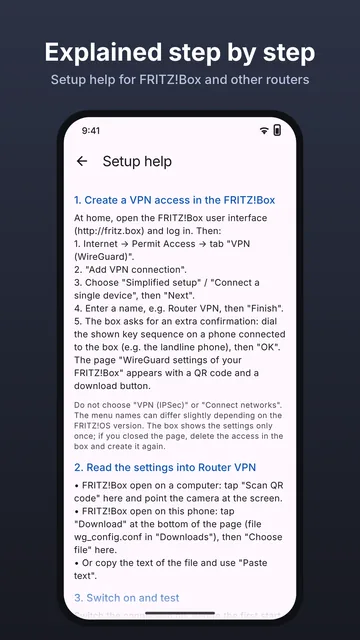
These steps match the setup help in the app. The FRITZ!Box interface is often in German; the German labels are given in brackets. Menu names can differ slightly depending on the FRITZ!OS version.
A. Create the VPN access in the FRITZ!Box
At home, open http://fritz.box in a browser and log in.
Choose "Simplified setup" / "Connect a single device" („Einzelgerät verbinden“), then "Next".
Enter a name, e.g. Router VPN, then "Finish".
The router asks for an extra confirmation: dial the key sequence shown on a phone connected to the router (e.g. the landline phone), then "OK".
The page "WireGuard settings of your FRITZ!Box" appears with a QR code and a download button. Leave this page open.
Note: do not choose "VPN (IPSec)" or "Connect networks". The router shows the settings only once; if you closed the page, delete the access in the router and create it again. The QR code and file are a key to your home network: do not share or photograph them, and delete the file after importing it.
B. Import the settings into Router VPN
Install Router VPN – from the home page (soon also on Google Play and in the Galaxy Store). In Softstringsphone, "Install VPN app" takes you straight there.
In Router VPN tap "Add connection" and choose one way:
FRITZ!Box open on a computer: "Scan QR code" and point the camera at the screen.
FRITZ!Box open on this phone: tap the download button there (file wg_config.conf in "Downloads"), then "Choose file" in the app.
Or copy the text of the file and use "Paste text".
Optionally enter a name, e.g. "FRITZ!Box at home".
C. Switch on and test
Turn on the switch of the connection. The app shows "Before the VPN starts" once; confirm with "Continue".
Android shows a "Connection request": allow it with "OK".
Test with Wi-Fi switched off. After a few seconds the state shows "Connected" and "Last answer from the router".
Softstringsphone now shows "VPN active" and registers for incoming calls. You can close Router VPN; the VPN stays on until you turn it off.
Optional: under "Settings" on the connection, choose what goes through the VPN and turn on "Automatic by network" (section 3). For the automatic mode, tap "I am at home: remember router now" once in your Wi-Fi at home – or the app remembers the router by itself the next time it connects.
Add connectionDisclosure before the first startConnectedSetup help in the app
Tips
At home on Wi-Fi you don't need the VPN. With "Automatic by network" it rests there by itself.
In Android's VPN settings you can set Router VPN to "Always-on VPN". Android then keeps the last used connection on, even after a restart. Leave "Block connections without VPN" off if only part of the traffic should use the VPN.
Only one connection can be on at a time. Switching on another one ends the current one.
7. Common problems
"The router is not answering"
Test on mobile data, not on your own Wi-Fi.
Check that the access still exists in the FRITZ!Box (Internet → Permit Access → VPN (WireGuard)). If you created it again, import the new settings – the old keys no longer work.
Some public Wi-Fi networks (hotels, offices, trains) block WireGuard (UDP). Try mobile data.
If the router gets a new internet address, e.g. after the provider's daily reconnect, the app notices the missing answers and reconnects by itself.
"The router's address was not found"
Is the phone online? The app tries again by itself in a moment.
In the FRITZ!Box, check under Internet → MyFRITZ! Account that the router is registered. After a router restart it can take a few minutes until the MyFRITZ! address is correct again.
"These are not WireGuard settings"
Import the QR code or file from Internet → Permit Access → VPN (WireGuard). The MyFRITZ! address alone or an IPSec access is not enough. If the private key or the address (Endpoint) is missing, the app says so explicitly.
"Android did not allow the VPN" / another VPN is active
Android allows only one active VPN. Switch Router VPN on again and tap "OK" when Android asks. If another app (work VPN, ad blocker using a VPN, the "WireGuard" app) is set as "Always-on VPN", turn that off first under Settings → Network & internet → VPN.
Connection with DS-Lite (no public IPv4 address)
Many cable and some fibre connections have no public IPv4 address of their own. The router is then only reachable via IPv6. The VPN works if your mobile network supports IPv6 too – usually the case on German mobile networks, often not on other Wi-Fi networks. Fix: ask your provider for a public IPv4 address.
Same address range as the other network
Many FRITZ!Boxes use 192.168.178.x. If you are on a Wi-Fi network with the same range (for example at a friend's house with a FRITZ!Box), your home network cannot be reached. Fix: use mobile data, or change your router's address range (Home Network → Network → Network Settings → IPv4 Settings) and then create the VPN access again.
Browsing is slow while the VPN is on
All traffic is going through your home connection, and its upload speed is the limit – typical for connections from version 1.0.x. Fix: choose "Home network only" under "What goes through the VPN?", or "Reset to recommendation" (section 3).
http://fritz.box does not open in the browser
With the default "Only our apps", the browser does not use the VPN. Add the browser under "Selected apps" or choose "All apps". If name resolution is set to "From the current network", reach the router by its address (e.g. http://192.168.178.1).
A banking or streaming app does not work with the VPN
Some apps refuse VPN connections. Choose that app as an exclusion under "All apps except …" – or stay with "Only our apps", where it is not affected anyway.
The automatic mode does not recognise my Wi-Fi at home
The app recognises home by your FRITZ!Box's device ID. For this, "Allow access for applications" must be on under Home Network → Network → Network Settings (usually it already is). With routers that don't provide this ID, the rule for other Wi-Fi networks applies at home. If "Block connections without VPN" is on in Android, the VPN never rests at home.
Incoming calls do not arrive while away
Is the VPN running? Softstringsphone shows "VPN active".
Turn off battery optimization for Softstringsphone (button in the app's settings, or Settings → Apps → Softstringsphone → Battery → Unrestricted). Samsung, Xiaomi, Huawei and others have extra power-saving lists; help per manufacturer: dontkillmyapp.com.
Which phones ring is decided by the FRITZ!Box (Telephony → Telephony Devices).
8. Alternatives
Router VPN is an option, not a requirement. The VPNs of these apps usually apply to the whole phone, so Softstringsphone and Pro also work with these:
MyFRITZ!App by the router manufacturer: can also open a VPN connection to the FRITZ!Box.
The official "WireGuard" app: import the same FRITZ!Box settings there and switch it on.
Without a VPN: at home on Wi-Fi, both apps call directly through the FRITZ!Box.
Only one VPN can be on at a time. If you use one of these apps, leave Router VPN off.
9. Demo video (text version)
The short demo video shows the whole flow without sound. This is what can be seen at each point. In the video – as was usual up to version 1.0.1 – all traffic goes through the tunnel, which is why the browser opens the FRITZ!Box too; with today's default "Only our apps", the browser would have to be selected for that.
Time
What is shown
0:00
Wi-Fi off, mobile data on. Router VPN shows "No connection yet": a WireGuard VPN client for the user's own router, with no developer servers.
0:10
"Add connection" → "Choose file" → wg_config.conf: the user imports the configuration generated by their own router.
0:25
Switch on → disclosure "Before the VPN starts" → "Continue" → Android "Connection request" → "OK".
0:40
"Connected", last answer from the router and data volume: the encrypted tunnel to the user's own router is up.
0:50
In the browser, http://fritz.box opens the user's own router interface: the home network is reachable over mobile data.
1:05
Back in the app, the VPN is switched off – possible at any time.
Trademarks
Router VPN and Softstringsphone are independent apps and are not affiliated with FRITZ! GmbH (formerly AVM). FRITZ!Box, FRITZ!OS and MyFRITZ! are trademarks of FRITZ! GmbH. WireGuard is a registered trademark of Jason A. Donenfeld.
Router VPN
Le VPN vers votre propre routeur – expliqué simplement
Pourquoi Router VPN utilise un VPN, où mène le tunnel, quel trafic y passe et pourquoi aucune de vos données ne nous parvient. Avec la configuration de la FRITZ!Box pas à pas et de l’aide en cas de problème. Mise à jour : octobre 2026, Router VPN 1.1.1. L’app existe en allemand et en anglais ; ses libellés sont cités ici en anglais.
Version 1.1.1 · Android 8.0 ou plus récent · 16,7 Mo
Somme de contrôle (SHA-256): 8b2a3c9944ae8691db20981597deb9586f5c8ff716b119fb1a7264bd30bc8be2
Sans store : à l’ouverture, Android demande une fois d’autoriser les installations depuis cette source (par exemple votre navigateur) – autorisez une fois. Pas de mises à jour automatiques ; les nouvelles versions sont disponibles ici. L’app existe en anglais et en allemand. Politique de confidentialité de Router VPN (en anglais).
En bref
Router VPN relie votre smartphone uniquement à votre propre routeur à la maison, par exemple une FRITZ!Box. Nous n’exploitons aucun serveur VPN ; votre trafic ne passe jamais par nous.
Le VPN permet à Softstringsphone et Softstringsphone Pro de fonctionner aussi en déplacement via votre FRITZ!Box : avec votre numéro fixe, le journal d’appels, le répertoire et les appels entrants.
Vous décidez de ce qui passe par le tunnel. Par défaut, seulement nos apps et seulement les connexions vers votre réseau domestique – le reste de votre Internet n’est pas touché.
Le tunnel est chiffré avec WireGuard. Votre FRITZ!Box crée elle-même les identifiants ; vous les importez dans l’app par code QR, fichier ou texte.
Le VPN ne démarre qu’après que l’app a expliqué ce qu’il fait et que vous avez accepté la demande d’autorisation d’Android. Il peut être coupé à tout moment.
Softstringsphone et Softstringsphone Pro s’enregistrent comme téléphone auprès de votre FRITZ!Box. Sur le Wi-Fi de la maison, cela fonctionne directement. En réseau mobile ou sur un autre Wi-Fi, votre FRITZ!Box n’est volontairement pas joignable depuis Internet. Sans VPN, impossible d’appeler avec votre numéro fixe, les appels entrants n’arrivent pas sur le smartphone, et le journal d’appels et le répertoire de la box manquent.
Router VPN établit un tunnel chiffré entre le smartphone et votre FRITZ!Box. Pour la box, le smartphone est alors comme à la maison sur le réseau domestique. La box n’a pas besoin d’ouvrir de ports de téléphonie sur Internet – c’est plus sûr que d’exposer directement la téléphonie. Il en va de même pour tout le reste du réseau domestique, comme un NAS, la domotique ou l’interface de la FRITZ!Box.
Pourquoi une app à part ?
Google Play n’autorise l’interface VPN d’Android (VpnService) que dans les apps dont la fonction principale est un VPN. C’est pourquoi, depuis Softstringsphone 1.1.0 et Pro 2.3.0, le tunnel se trouve dans l’app gratuite et autonome Router VPN et non plus dans les apps de téléphonie. Les deux apps de téléphonie font partie des apps que Router VPN fait passer par le tunnel par défaut ; elles téléphonent automatiquement à travers lui et indiquent s’il est actif.
2. Comment ça marche
Dans votre FRITZ!Box, vous créez un accès WireGuard pour le smartphone. La box génère les clés et affiche les réglages sous forme de code QR et de fichier wg_config.conf.
Vous importez ces réglages dans Router VPN. Ils sont stockés chiffrés, uniquement sur le smartphone.
À l’activation, Router VPN utilise la fonction VPN d’Android pour ouvrir le tunnel directement vers l’adresse indiquée dans les réglages (Endpoint, en général votre adresse MyFRITZ!). Il utilise la bibliothèque WireGuard officielle. Quelles apps et quelles destinations passent par le tunnel se règle dans l’app (section 3).
Par le tunnel, Softstringsphone joint la FRITZ!Box comme à la maison, s’enregistre pour les appels entrants et téléphone via la box avec votre numéro fixe.
Le tunnel s’arrête à votre routeur. Sa destination est définie uniquement par les réglages que votre routeur a générés. Nous ne voyons pas votre trafic, ne le redirigeons pas et n’avons aucun moyen de le voir.
3. Quel trafic passe par le tunnel
C’est vous qui décidez – dans Router VPN, pour chaque connexion sous « Settings » → « What goes through the VPN? ». La fiche de la connexion indique toujours la règle en vigueur (« Through the VPN: … »).
Par défaut pour les nouvelles connexions : « Only our apps » · « Home network only ». Seuls Softstringsphone, Softstringsphone Pro et Fritten&Fax utilisent le tunnel, et seulement pour les connexions vers des appareils à la maison. Toutes les autres apps et le reste de votre Internet contournent le VPN comme d’habitude et restent rapides.
Réglages d’une connexion
Quelles apps ?
« Only our apps » (recommandé) – Softstringsphone, Softstringsphone Pro et Fritten&Fax.
« Selected apps » – par exemple aussi le navigateur, pour ouvrir l’interface de la FRITZ!Box ou un NAS.
« All apps except … » – tout le smartphone sauf des exceptions, comme les apps bancaires ou de streaming qui n’aiment pas les VPN.
« All apps » – tout le smartphone.
Vers où ?
« Home network only » (recommandé) – seules les connexions vers le routeur, le standard téléphonique, le NAS et les autres appareils de la maison passent par le tunnel. Internet reste direct.
« Everything, including the internet » – tout le trafic des apps choisies sort par votre connexion à la maison. Utile sur un Wi-Fi ouvert et inconnu. Les sites web voient alors l’adresse IP de votre connexion domestique, et le débit montant de la maison limite la navigation. Avec « Local networks direct », imprimantes, téléviseurs et page de connexion du Wi-Fi de l’hôtel restent accessibles.
Automatique selon le réseau
Si vous le souhaitez, Router VPN choisit lui-même la règle selon l’endroit où vous êtes : une règle « On mobile data », une « In other Wi-Fi networks » (proposé : tout par le tunnel) et une « In your Wi-Fi at home » (proposé : « Rest » – rien ne passe par le VPN à la maison, et il se réactive tout seul quand vous partez). L’app reconnaît la maison grâce à votre propre routeur, sans accès à la localisation (voir section 4).
Connexions des versions précédentes
Jusqu’à la version 1.0.1, les réglages de la FRITZ!Box (AllowedIPs avec 0.0.0.0/0) faisaient passer tout le trafic du smartphone par le tunnel. Les connexions créées avant la mise à jour se comportent exactement comme avant (« All apps · Everything »). L’app le signale une fois et propose « Use recommendation » ou « Keep as before ».
Réglages avancés
Sous « Show advanced settings » : plages d’adresses supplémentaires à la maison (si votre réseau domestique en a plusieurs), résolution de noms (DNS : comme indiqué par le routeur, celle du réseau actuel ou vos propres serveurs), MTU et signal de maintien. « Reset to recommendation » rétablit tout. Les réglages WireGuard de votre routeur restent eux-mêmes enregistrés sans modification.
Remarque : si « Bloquer les connexions sans VPN » est activé dans les réglages VPN d’Android, Android n’autorise que le trafic passant par le VPN. Router VPN fait alors passer tout le trafic de toutes les apps par le tunnel – sinon les autres apps n’auraient plus Internet – et ne se met pas en pause à la maison. L’app l’indique sur la connexion.
4. Confidentialité et autorisations
Aucune collecte de données : Router VPN n’a ni compte, ni serveur propre, ni bibliothèque de publicité ou d’analyse, et n’envoie rien ni à nous ni à des tiers.
Aucun journal : l’app n’analyse, ne modifie, n’enregistre ni ne redirige le trafic du tunnel.
Reconnaissance de la maison (uniquement avec l’automatique selon le réseau) : l’app demande à votre propre routeur son identifiant fixe d’appareil – uniquement par le tunnel ou sur votre propre Wi-Fi – et ne l’enregistre que sur votre smartphone. Aucun accès à la localisation, les noms de Wi-Fi ne sont pas lus, rien n’est envoyé ailleurs.
Votre clé reste sur le smartphone : les réglages importés contiennent une clé privée. Ils sont chiffrés en AES-256-GCM (clé dans l’Android Keystore), stockés uniquement sur ce smartphone, exclus des sauvegardes Android et jamais journalisés. « Delete » sur la connexion ou la désinstallation de l’app les supprime.
Votre consentement : avant le premier démarrage, l’app explique sur l’écran « Before the VPN starts » ce que fait le VPN et que vous décidez de ce qui y passe. Ce n’est qu’après « Continue » qu’Android demande dans sa propre fenêtre si Router VPN peut établir une connexion VPN. Aucun VPN ne démarre sans votre accord. Pendant qu’il fonctionne, Android affiche une icône de clé dans la barre d’état.
Désactivable à tout moment : avec l’interrupteur dans l’app, la tuile de réglages rapides « Router VPN » ou dans Android sous Paramètres → Réseau et Internet → VPN.
Autorisations :VPN (Android demande une fois) pour le tunnel ; Internet pour la connexion à votre routeur ; état du réseau pour distinguer réseau mobile et Wi-Fi (automatique selon le réseau) ; liste des apps ayant une icône dans le tiroir d’apps pour choisir quelles apps utilisent le VPN – la liste reste sur le smartphone ; appareil photo uniquement quand vous touchez « Scan QR code » – la reconnaissance se fait sur le smartphone, les images ne sont ni enregistrées ni envoyées ; exécution au démarrage pour réactiver après un redémarrage un VPN qui était allumé.
Une FRITZ!Box avec WireGuard (FRITZ!OS 7.50 ou plus récent) – ou un autre routeur ou serveur WireGuard, par exemple OpenWrt, GL.iNet, UniFi ou Synology.
Une connexion Internet par laquelle la box est joignable : avec une adresse IPv4 publique ou via IPv6 (voir DS-Lite).
Ces étapes correspondent à l’aide intégrée à l’app. L’interface de la FRITZ!Box est souvent en allemand ; les libellés allemands sont indiqués entre parenthèses. Les noms de menus peuvent légèrement varier selon la version de FRITZ!OS.
A. Créer l’accès VPN dans la FRITZ!Box
À la maison, ouvrir http://fritz.box dans un navigateur et se connecter.
« Ajouter une connexion VPN » („VPN-Verbindung hinzufügen“).
Choisir « Configuration simplifiée » / « Connecter un appareil individuel » („Einzelgerät verbinden“), puis « Suivant ».
Saisir un nom, par exemple Router VPN, puis « Terminer ».
La box demande une confirmation supplémentaire : composer la séquence de touches affichée sur un téléphone branché à la box (par exemple le téléphone fixe), puis « OK ».
La page des réglages WireGuard de votre FRITZ!Box s’affiche avec un code QR et un bouton de téléchargement. Laisser cette page ouverte.
Attention : ne pas choisir « VPN (IPSec) » ni « Coupler des réseaux ». La box n’affiche les réglages qu’une seule fois ; si la page est déjà fermée, supprimer l’accès dans la box et le recréer. Le code QR et le fichier sont une clé de votre réseau domestique : ne pas les partager ni les photographier, et supprimer le fichier après l’import.
B. Importer les réglages dans Router VPN
Installer Router VPN – depuis la page d’accueil (bientôt aussi sur Google Play et dans le Galaxy Store). Dans Softstringsphone, « Install VPN app » y mène directement.
Dans Router VPN, toucher « Add connection » et choisir un moyen :
FRITZ!Box ouverte sur un ordinateur : « Scan QR code » et pointer l’appareil photo vers l’écran.
FRITZ!Box ouverte sur ce smartphone : y toucher le bouton de téléchargement (fichier wg_config.conf dans « Téléchargements »), puis « Choose file » dans l’app.
Ou copier le texte du fichier et utiliser « Paste text ».
Si vous le souhaitez, saisir un nom, par exemple « FRITZ!Box maison ».
C. Activer et tester
Activer l’interrupteur de la connexion. L’app affiche une fois « Before the VPN starts » ; confirmer avec « Continue ».
Android affiche une « Demande de connexion » : l’autoriser avec « OK ».
Tester de préférence avec le Wi-Fi coupé. Au bout de quelques secondes, l’état indique « Connected » et « Last answer from the router ».
Softstringsphone affiche maintenant « VPN active » et s’enregistre pour les appels entrants. Vous pouvez fermer Router VPN ; le VPN reste actif jusqu’à ce que vous le coupiez.
En option : sous « Settings » sur la connexion, choisir ce qui passe par le VPN et activer « Automatic by network » (section 3). Pour le mode automatique, toucher une fois « I am at home: remember router now » sur le Wi-Fi de la maison – ou l’app mémorise le routeur toute seule à la prochaine connexion.
Ajouter une connexionExplication avant le premier démarrageConnectéAide dans l’app
Conseils
À la maison en Wi-Fi, le VPN est inutile. Avec « Automatic by network », il s’y met en pause tout seul.
Dans les réglages VPN d’Android, vous pouvez définir Router VPN comme « VPN permanent ». Android garde alors la dernière connexion utilisée active, même après un redémarrage. Laissez « Bloquer les connexions sans VPN » désactivé si seule une partie du trafic doit passer par le VPN.
Une seule connexion peut être active à la fois. En activer une autre arrête celle en cours.
7. Problèmes fréquents
« The router is not answering »
Tester en réseau mobile, pas sur votre propre Wi-Fi.
Vérifier que l’accès existe toujours dans la FRITZ!Box (Internet → Partages → VPN (WireGuard)). S’il a été recréé, importer les nouveaux réglages – les anciennes clés ne sont plus valables.
Certains Wi-Fi publics (hôtels, entreprises, trains) bloquent WireGuard (UDP). Essayer alors le réseau mobile.
Si le routeur reçoit une nouvelle adresse Internet, par exemple après la déconnexion forcée, l’app remarque l’absence de réponse et se reconnecte toute seule.
« The router’s address was not found »
Le smartphone est-il en ligne ? L’app réessaie d’elle-même dans un instant.
Dans la FRITZ!Box, vérifier sous Internet → Compte MyFRITZ! que la box y est bien enregistrée. Après un redémarrage de la box, il peut falloir quelques minutes pour que l’adresse MyFRITZ! soit de nouveau correcte.
« These are not WireGuard settings »
Il faut importer le code QR ou le fichier de Internet → Partages → VPN (WireGuard). L’adresse MyFRITZ! seule ou un accès IPSec ne suffisent pas. S’il manque la clé privée ou l’adresse (Endpoint), l’app le signale explicitement.
« Android did not allow the VPN » / un autre VPN est actif
Android n’autorise qu’un seul VPN actif. Réactiver Router VPN et toucher « OK » lorsqu’Android le demande. Si une autre app (VPN d’entreprise, bloqueur de publicité fonctionnant en VPN, l’app « WireGuard ») est définie comme « VPN permanent », désactiver d’abord ce réglage sous Paramètres → Réseau et Internet → VPN.
Connexion DS-Lite (pas d’adresse IPv4 publique)
De nombreuses connexions câble et certaines connexions fibre n’ont pas d’adresse IPv4 publique propre. La box n’est alors joignable qu’en IPv6. Le VPN fonctionne si votre réseau mobile prend aussi en charge l’IPv6 – c’est souvent le cas sur les réseaux mobiles, souvent pas sur les autres Wi-Fi. Solution : demander une adresse IPv4 publique à votre fournisseur.
Même plage d’adresses que l’autre réseau
Beaucoup de FRITZ!Box utilisent 192.168.178.x. Si vous êtes sur un Wi-Fi utilisant la même plage (par exemple chez des amis équipés d’une FRITZ!Box), votre réseau domestique n’est pas joignable. Solution : utiliser le réseau mobile, ou changer la plage d’adresses de votre box (Réseau domestique → Réseau → Paramètres réseau → Paramètres IPv4) puis recréer l’accès VPN.
La navigation est lente quand le VPN est actif
Tout le trafic passe alors par votre connexion domestique, dont le débit montant freine – typique des connexions issues de la version 1.0.x. Solution : choisir « Home network only » sous « What goes through the VPN? », ou « Reset to recommendation » (section 3).
http://fritz.box ne s’ouvre pas dans le navigateur
Avec le réglage par défaut « Only our apps », le navigateur n’utilise pas le VPN. Ajouter le navigateur sous « Selected apps » ou choisir « All apps ». Si la résolution de noms est réglée sur « From the current network », joindre la box par son adresse (par exemple http://192.168.178.1).
Une app bancaire ou de streaming ne fonctionne pas avec le VPN
Certaines apps refusent les connexions VPN. Choisir cette app comme exception sous « All apps except … » – ou rester sur « Only our apps », où elle n’est de toute façon pas concernée.
Le mode automatique ne reconnaît pas mon Wi-Fi à la maison
L’app reconnaît la maison grâce à l’identifiant d’appareil de votre FRITZ!Box. Pour cela, « Autoriser l’accès aux applications » doit être activé sous Réseau domestique → Réseau → Paramètres réseau (c’est en général déjà le cas). Avec les routeurs qui ne fournissent pas cet identifiant, la règle des autres Wi-Fi s’applique à la maison. Si « Bloquer les connexions sans VPN » est activé dans Android, le VPN ne se met jamais en pause à la maison.
Les appels entrants n’arrivent pas en déplacement
Le VPN est-il actif ? Softstringsphone affiche « VPN active ».
Désactiver l’optimisation de la batterie pour Softstringsphone (bouton dans les réglages de l’app, ou Paramètres → Applications → Softstringsphone → Batterie → Non restreinte). Samsung, Xiaomi, Huawei et d’autres ont des listes d’économie d’énergie supplémentaires ; aide par fabricant : dontkillmyapp.com.
Quels téléphones sonnent, c’est la FRITZ!Box qui le décide (Téléphonie → Appareils de téléphonie).
8. Alternatives
Router VPN est une possibilité, pas une obligation. Les VPN de ces apps valent en général pour tout le smartphone, Softstringsphone et Pro fonctionnent donc aussi avec :
MyFRITZ!App du fabricant de la box : peut aussi établir une connexion VPN vers la FRITZ!Box.
L’app officielle « WireGuard » : y importer les mêmes réglages de la FRITZ!Box et l’activer.
Sans VPN : à la maison en Wi-Fi, les deux apps téléphonent directement via la FRITZ!Box.
Un seul VPN peut être actif à la fois. Si vous utilisez l’une de ces apps, laissez Router VPN désactivé.
9. Vidéo de démonstration (version texte)
La courte vidéo de démonstration montre tout le déroulement, sans son. Voici ce que l’on voit à chaque moment. Dans la vidéo – comme c’était l’usage jusqu’à la version 1.0.1 – tout le trafic passe par le tunnel, c’est pourquoi le navigateur ouvre aussi la FRITZ!Box ; avec le réglage par défaut actuel « Only our apps », il faudrait pour cela avoir sélectionné le navigateur.
Temps
Ce que l’on voit
0:00
Wi-Fi coupé, données mobiles activées. Router VPN affiche « No connection yet » : un client VPN WireGuard pour le routeur de l’utilisateur, sans serveur du développeur.
0:10
« Add connection » → « Choose file » → wg_config.conf : l’utilisateur importe la configuration générée par son propre routeur.
0:25
Interrupteur activé → explication « Before the VPN starts » → « Continue » → « Demande de connexion » d’Android → « OK ».
0:40
« Connected », dernière réponse du routeur et volume de données : le tunnel chiffré vers le routeur de l’utilisateur est établi.
0:50
Dans le navigateur, http://fritz.box ouvre l’interface du routeur de l’utilisateur : le réseau domestique est joignable via le réseau mobile.
1:05
De retour dans l’app, le VPN est désactivé – possible à tout moment.
Marques
Router VPN et Softstringsphone sont des apps indépendantes, sans lien avec FRITZ! GmbH (anciennement AVM). FRITZ!Box, FRITZ!OS et MyFRITZ! sont des marques de FRITZ! GmbH. WireGuard est une marque déposée de Jason A. Donenfeld.
Router VPN
La VPN a tu propio router, explicada de forma sencilla
Por qué Router VPN usa una VPN, adónde lleva el túnel, qué tráfico pasa por él y por qué ninguno de tus datos llega a nosotros. Con la configuración de la FRITZ!Box paso a paso y ayuda para los problemas. Actualizado: octubre de 2026, Router VPN 1.1.1. La app está en alemán e inglés; aquí se citan sus textos en inglés.
Suma de control (SHA-256): 8b2a3c9944ae8691db20981597deb9586f5c8ff716b119fb1a7264bd30bc8be2
Sin tienda: al abrirla, Android pregunta una vez si se permiten instalaciones desde este origen (por ejemplo, tu navegador): permítelo una vez. Las actualizaciones no son automáticas; las versiones nuevas están aquí. La app está en inglés y alemán. Política de privacidad de Router VPN (en inglés).
En resumen
Router VPN conecta tu móvil solo con tu propio router de casa, por ejemplo una FRITZ!Box. No tenemos ningún servidor VPN; tu tráfico nunca pasa por nosotros.
La VPN hace falta para que Softstringsphone y Softstringsphone Pro funcionen también fuera de casa a través de tu FRITZ!Box: con tu número fijo, la lista de llamadas, la agenda y las llamadas entrantes.
Tú decides qué pasa por el túnel. De forma predeterminada, solo nuestras apps y solo las conexiones a tu red doméstica; el resto de tu Internet no se toca.
El túnel está cifrado con WireGuard. Tu FRITZ!Box crea ella misma los datos de acceso; los importas en la app con un código QR, un archivo o un texto.
Sin recogida de datos, sin registros, sin cuenta, sin anuncios, sin rastreo, sin cesión a terceros.
La VPN solo se inicia después de que la app explique lo que hace y aceptes el diálogo de permiso de Android. Se puede apagar en cualquier momento.
Softstringsphone y Softstringsphone Pro se registran como teléfono en tu FRITZ!Box. En el Wi-Fi de casa esto funciona directamente. Con datos móviles o en otro Wi-Fi, tu FRITZ!Box no es accesible desde Internet, y es intencionado. Sin VPN no puedes llamar con tu número fijo, las llamadas entrantes no llegan al móvil y faltan la lista de llamadas y la agenda del router.
Router VPN crea un túnel cifrado del móvil a tu FRITZ!Box. Para el router, el móvil está entonces como en casa, en la red doméstica. El router no necesita abrir puertos de telefonía a Internet, lo que es más seguro que exponer la telefonía directamente. Lo mismo vale para todo lo demás de la red doméstica, como un NAS, el hogar inteligente o la interfaz de la FRITZ!Box.
¿Por qué una app aparte?
Google Play solo permite la interfaz VPN de Android (VpnService) en apps cuya función principal es una VPN. Por eso, desde Softstringsphone 1.1.0 y Pro 2.3.0, el túnel está en la app gratuita e independiente Router VPN y no en las apps de teléfono. Las dos apps de teléfono están entre las que Router VPN envía por el túnel de forma predeterminada; llaman automáticamente a través de él y muestran si está activo.
2. Cómo funciona
En tu FRITZ!Box creas un acceso WireGuard para el móvil. El router genera las claves y muestra los ajustes como código QR y como archivo wg_config.conf.
Importas esos ajustes en Router VPN. Se guardan cifrados, solo en el móvil.
Al activarla, Router VPN usa la función VPN de Android para abrir el túnel directamente a la dirección indicada en los ajustes (Endpoint, normalmente tu dirección MyFRITZ!). Usa la biblioteca oficial de WireGuard. Qué apps y qué destinos usan el túnel se ajusta en la app (sección 3).
A través del túnel, Softstringsphone llega a la FRITZ!Box como en casa, se registra para las llamadas entrantes y llama a través del router con tu número fijo.
El túnel termina en tu router. Su destino lo definen solo los ajustes que ha generado tu router. No vemos tu tráfico, no lo desviamos y no tenemos forma de verlo.
3. Qué tráfico pasa por el túnel
Lo decides tú: en Router VPN, en cada conexión, en «Settings» → «What goes through the VPN?». La tarjeta de la conexión muestra siempre lo que se aplica en ese momento («Through the VPN: …»).
Predeterminado para conexiones nuevas: «Only our apps» · «Home network only». Solo Softstringsphone, Softstringsphone Pro y Fritten&Fax usan el túnel, y solo para conexiones a dispositivos de casa. Todas las demás apps y el resto de tu Internet van como siempre, sin pasar por la VPN, y siguen siendo rápidos.
Ajustes de una conexión
¿Qué apps?
«Only our apps» (recomendado): Softstringsphone, Softstringsphone Pro y Fritten&Fax.
«Selected apps»: por ejemplo, también el navegador, para abrir la interfaz de la FRITZ!Box o un NAS.
«All apps except …»: todo el móvil salvo excepciones, como apps bancarias o de streaming que no se llevan bien con las VPN.
«All apps»: todo el móvil.
¿Hacia dónde?
«Home network only» (recomendado): solo las conexiones al router, la centralita, el NAS y otros dispositivos de casa pasan por el túnel. Internet sigue siendo directo.
«Everything, including the internet»: todo el tráfico de las apps elegidas sale por tu conexión de casa. Útil en redes Wi-Fi abiertas y desconocidas. Las webs ven entonces la dirección IP de tu conexión de casa, y la velocidad de subida de casa limita la navegación. Con «Local networks direct», las impresoras, los televisores y la página de acceso del Wi-Fi del hotel siguen accesibles.
Automático según la red
Si quieres, Router VPN elige la regla por sí mismo según dónde estés: una regla «On mobile data», otra «In other Wi-Fi networks» (propuesta: todo por el túnel) y otra «In your Wi-Fi at home» (propuesta: «Rest»; en casa no pasa nada por la VPN y, al salir, se vuelve a activar sola). La app reconoce la casa por tu propio router, sin acceso a la ubicación (ver sección 4).
Conexiones de versiones anteriores
Hasta la versión 1.0.1, los ajustes de la FRITZ!Box (AllowedIPs con 0.0.0.0/0) enviaban todo el tráfico del móvil por el túnel. Las conexiones creadas antes de la actualización se comportan exactamente igual que antes («All apps · Everything»). La app lo indica una vez y ofrece «Use recommendation» o «Keep as before».
Ajustes avanzados
En «Show advanced settings»: rangos de direcciones adicionales en casa (si tu red doméstica tiene más de uno), resolución de nombres (DNS: la indicada por el router, la de la red actual o servidores propios), MTU y señal de vida. «Reset to recommendation» lo restablece todo. Los ajustes WireGuard de tu router se guardan tal cual, sin cambios.
Nota: si en los ajustes VPN de Android está activado «Bloquear conexiones sin VPN», Android solo permite tráfico a través de la VPN. Router VPN envía entonces todo el tráfico de todas las apps por el túnel (si no, las demás apps se quedarían sin Internet) y no descansa en casa. La app lo indica en la conexión.
4. Privacidad y permisos
Sin recogida de datos: Router VPN no tiene cuenta, ni servidor propio, ni bibliotecas de publicidad o análisis, y no envía nada ni a nosotros ni a terceros.
Sin registros: la app no analiza, modifica, registra ni desvía el tráfico del túnel.
Reconocer la casa (solo con el modo automático según la red): la app pregunta a tu propio router su identificador fijo de dispositivo, solo a través del túnel o en tu propio Wi-Fi, y lo guarda solo en tu móvil. Sin acceso a la ubicación, no se leen los nombres de las redes Wi-Fi y no se envía nada a ningún otro sitio.
Tu clave se queda en el móvil: los ajustes importados contienen una clave privada. Se cifran con AES-256-GCM (clave en el Android Keystore), se guardan solo en este móvil, se excluyen de las copias de seguridad de Android y nunca se registran. «Delete» en la conexión o desinstalar la app los elimina.
Tu consentimiento: antes del primer inicio, la app explica en la pantalla «Before the VPN starts» lo que hace la VPN y que tú decides qué pasa por ella. Solo después de «Continue» pregunta Android, en su propio diálogo, si Router VPN puede crear una conexión VPN. Sin tu consentimiento no se inicia ninguna VPN. Mientras está activa, Android muestra un icono de llave en la barra de estado.
Desactivable en cualquier momento: con el interruptor de la app, con el mosaico de ajustes rápidos «Router VPN» o en Android en Ajustes → Redes e Internet → VPN.
Permisos:VPN (Android lo pregunta una vez) para el túnel; Internet para la conexión con tu router; estado de la red para distinguir datos móviles y Wi-Fi (modo automático); lista de apps con icono en el cajón de aplicaciones para que elijas qué apps usan la VPN; la lista se queda en el móvil; cámara solo cuando tocas «Scan QR code»; el reconocimiento se hace en el móvil y las imágenes no se guardan ni se envían; ejecutar al iniciar para volver a activar tras un reinicio una VPN que estaba encendida.
Estos pasos coinciden con la ayuda de la app. La interfaz de la FRITZ!Box suele estar en alemán; entre paréntesis figuran los textos en alemán. Los nombres de los menús pueden variar un poco según la versión de FRITZ!OS.
A. Crear el acceso VPN en la FRITZ!Box
En casa, abre http://fritz.box en un navegador e inicia sesión.
Internet → Habilitaciones (Internet → Freigaben) → pestaña «VPN (WireGuard)».
Elige «Configuración simplificada» / «Conectar un dispositivo individual» („Einzelgerät verbinden“) y luego «Siguiente».
Escribe un nombre, por ejemplo Router VPN, y luego «Finalizar».
El router pide una confirmación adicional: marca la secuencia de teclas indicada en un teléfono conectado al router (por ejemplo, el teléfono fijo) y luego «OK».
Aparece la página de ajustes WireGuard de tu FRITZ!Box con un código QR y un botón de descarga. Deja esta página abierta.
Atención: no elijas «VPN (IPSec)» ni «Conectar redes». El router muestra los ajustes una sola vez; si ya has cerrado la página, borra el acceso en el router y créalo de nuevo. El código QR y el archivo son una llave de tu red doméstica: no los compartas ni les hagas fotos, y borra el archivo después de importarlo.
B. Importar los ajustes en Router VPN
Instala Router VPN desde la página de inicio (pronto también en Google Play y en Galaxy Store). En Softstringsphone, «Install VPN app» te lleva directamente.
En Router VPN toca «Add connection» y elige una forma:
FRITZ!Box abierta en un ordenador: «Scan QR code» y apunta la cámara a la pantalla.
FRITZ!Box abierta en este móvil: toca allí el botón de descarga (archivo wg_config.conf en «Descargas») y luego «Choose file» en la app.
O copia el texto del archivo y usa «Paste text».
Si quieres, escribe un nombre, por ejemplo «FRITZ!Box de casa».
C. Activar y probar
Activa el interruptor de la conexión. La app muestra una vez «Before the VPN starts»; confirma con «Continue».
Android muestra una «Solicitud de conexión»: permítela con «OK».
Prueba mejor con el Wi-Fi apagado. A los pocos segundos aparece «Connected» y «Last answer from the router».
Softstringsphone muestra ahora «VPN active» y se registra para las llamadas entrantes. Puedes cerrar Router VPN; la VPN sigue activa hasta que la apagues.
Opcional: en «Settings» de la conexión, elige qué pasa por la VPN y activa «Automatic by network» (sección 3). Para el modo automático, toca una vez «I am at home: remember router now» en el Wi-Fi de casa, o la app recordará el router sola la próxima vez que se conecte.
Añadir conexiónExplicación antes del primer inicioConectadaAyuda en la app
Consejos
En casa, con Wi-Fi, no necesitas la VPN. Con «Automatic by network» descansa allí sola.
En los ajustes VPN de Android puedes configurar Router VPN como «VPN siempre activa». Android mantiene entonces activa la última conexión usada, también tras un reinicio. Deja «Bloquear conexiones sin VPN» desactivado si solo una parte del tráfico debe pasar por la VPN.
Solo puede estar activa una conexión a la vez. Al activar otra, termina la actual.
7. Problemas frecuentes
«The router is not answering»
Prueba con datos móviles, no en tu propio Wi-Fi.
Comprueba que el acceso sigue existiendo en la FRITZ!Box (Internet → Habilitaciones → VPN (WireGuard)). Si lo has vuelto a crear, importa los ajustes nuevos: las claves antiguas ya no sirven.
Algunas redes Wi-Fi públicas (hoteles, oficinas, trenes) bloquean WireGuard (UDP). Prueba entonces con datos móviles.
Si el router recibe una nueva dirección de Internet, por ejemplo tras la desconexión forzada, la app nota que faltan respuestas y se reconecta sola.
«The router’s address was not found»
¿Tiene conexión el móvil? La app vuelve a intentarlo sola en un momento.
En la FRITZ!Box, comprueba en Internet → Cuenta MyFRITZ! que el router está registrado. Tras reiniciar el router pueden pasar unos minutos hasta que la dirección MyFRITZ! vuelva a ser correcta.
«These are not WireGuard settings»
Hay que importar el código QR o el archivo de Internet → Habilitaciones → VPN (WireGuard). La dirección MyFRITZ! sola o un acceso IPSec no bastan. Si falta la clave privada o la dirección (Endpoint), la app lo indica expresamente.
«Android did not allow the VPN» / hay otra VPN activa
Android solo permite una VPN activa. Vuelve a activar Router VPN y toca «OK» cuando Android pregunte. Si otra app (VPN del trabajo, bloqueador de anuncios que funciona como VPN, la app «WireGuard») está configurada como «VPN siempre activa», desactívalo antes en Ajustes → Redes e Internet → VPN.
Conexión con DS-Lite (sin dirección IPv4 pública)
Muchas conexiones de cable y algunas de fibra no tienen una dirección IPv4 pública propia. El router solo es accesible entonces por IPv6. La VPN funciona si tu red móvil también admite IPv6, algo habitual en las redes móviles pero a menudo no en otras redes Wi-Fi. Solución: pide a tu proveedor una dirección IPv4 pública.
Mismo rango de direcciones que la otra red
Muchas FRITZ!Box usan 192.168.178.x. Si estás en un Wi-Fi con el mismo rango (por ejemplo, en casa de amigos con FRITZ!Box), no se puede llegar a tu red doméstica. Solución: usa datos móviles o cambia el rango de direcciones de tu router (Red doméstica → Red → Ajustes de red → Ajustes IPv4) y vuelve a crear el acceso VPN.
Navegar va lento con la VPN activada
Todo el tráfico pasa entonces por tu conexión de casa, y su velocidad de subida frena; es típico de conexiones de la versión 1.0.x. Solución: elige «Home network only» en «What goes through the VPN?» o «Reset to recommendation» (sección 3).
http://fritz.box no se abre en el navegador
Con el ajuste predeterminado «Only our apps», el navegador no usa la VPN. Añade el navegador en «Selected apps» o elige «All apps». Si la resolución de nombres está en «From the current network», accede al router por su dirección (por ejemplo, http://192.168.178.1).
Una app bancaria o de streaming no funciona con la VPN
Algunas apps rechazan las conexiones VPN. Elige esa app como excepción en «All apps except …», o quédate con «Only our apps», donde de todos modos no se ve afectada.
El modo automático no reconoce mi Wi-Fi de casa
La app reconoce la casa por el identificador de dispositivo de tu FRITZ!Box. Para ello debe estar activado «Permitir el acceso a aplicaciones» en Red doméstica → Red → Ajustes de red (normalmente ya lo está). Con routers que no ofrecen este identificador, en casa se aplica la regla de otras redes Wi-Fi. Si en Android está activado «Bloquear conexiones sin VPN», la VPN nunca descansa en casa.
Las llamadas entrantes no llegan fuera de casa
¿Está activa la VPN? Softstringsphone muestra «VPN active».
Desactiva la optimización de batería para Softstringsphone (botón en los ajustes de la app, o Ajustes → Aplicaciones → Softstringsphone → Batería → Sin restricciones). Samsung, Xiaomi, Huawei y otros tienen listas de ahorro de energía adicionales; ayuda por fabricante: dontkillmyapp.com.
Qué teléfonos suenan lo decide la FRITZ!Box (Telefonía → Dispositivos de telefonía).
8. Alternativas
Router VPN es una opción, no una obligación. Las VPN de estas apps suelen valer para todo el móvil, así que Softstringsphone y Pro también funcionan con ellas:
MyFRITZ!App del fabricante del router: también puede crear una conexión VPN con la FRITZ!Box.
La app oficial «WireGuard»: importa allí los mismos ajustes de la FRITZ!Box y actívala.
Sin VPN: en casa, con Wi-Fi, ambas apps llaman directamente a través de la FRITZ!Box.
Solo puede haber una VPN activa a la vez. Si usas una de estas apps, deja Router VPN apagada.
9. Vídeo de demostración (versión de texto)
El breve vídeo de demostración muestra todo el proceso sin sonido. Aquí se describe lo que se ve en cada momento. En el vídeo, como era habitual hasta la versión 1.0.1, todo el tráfico pasa por el túnel; por eso el navegador también abre la FRITZ!Box. Con el ajuste predeterminado actual, «Only our apps», habría que haber seleccionado el navegador.
Tiempo
Qué se ve
0:00
Wi-Fi apagado, datos móviles activados. Router VPN muestra «No connection yet»: un cliente VPN WireGuard para el router del propio usuario, sin servidores del desarrollador.
0:10
«Add connection» → «Choose file» → wg_config.conf: el usuario importa la configuración generada por su propio router.
0:25
Interruptor activado → explicación «Before the VPN starts» → «Continue» → «Solicitud de conexión» de Android → «OK».
0:40
«Connected», última respuesta del router y volumen de datos: el túnel cifrado al router del usuario está establecido.
0:50
En el navegador, http://fritz.box abre la interfaz del router del usuario: la red doméstica es accesible por datos móviles.
1:05
De vuelta en la app, se apaga la VPN, algo posible en cualquier momento.
Marcas
Router VPN y Softstringsphone son apps independientes y no tienen relación con FRITZ! GmbH (antes AVM). FRITZ!Box, FRITZ!OS y MyFRITZ! son marcas de FRITZ! GmbH. WireGuard es una marca registrada de Jason A. Donenfeld.

 Router VPN